ESMART® Configurator


ESMART® Configurator Summary
ESMART® Configurator is a mobile Android app in Tools by ESMART. Released in Dec 2018 (7 years ago). It has about 3.8K+ installs Based on AppGoblin estimates, it reaches roughly 199 monthly active users . Store metadata: updated Dec 4, 2025.
Recent activity: 18 installs this week (58 over 4 weeks) showing steady growth View trends →
Store info: Last updated on Google Play on Dec 4, 2025 .
0★
Ratings: 0
Screenshots

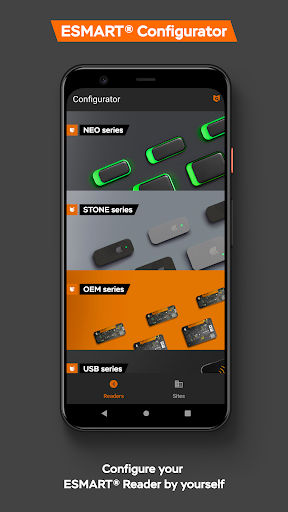
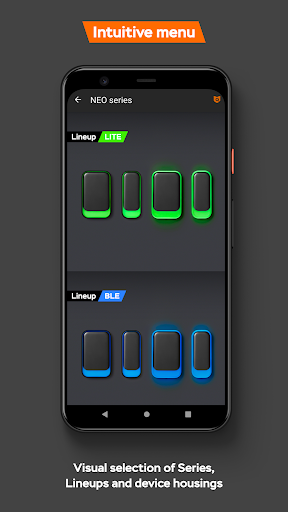
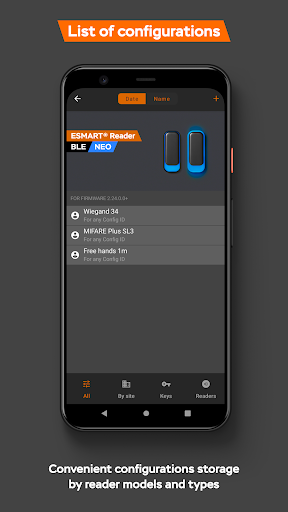
App Description
ESMART® Configurator – manager your ESMART® Readers without dismounting
ESMART® Configurator — an application that makes ESMART® Reader configuration and management process easy, without dismounting from the wall.
Configure you reader with three steps:
1) Create a configuration inside an application for your reader model or write an email to help@esmart.ru, in a free form describing the requirements for the settings that you want to change for the desired reader model.
2) Tap on configuration file you just created or imported from ESMART® technical support specialist
3) Apply Configuration:
With NFC:
— Write the configuration to a Master Card using NFC, by pressing an Apply button on the right top of the screen. Card will store the configuration
— Tap a Reader with a Master Card for 2-3 seconds to enter a Configuration Mode
— Tap a Master Card again to Apply configuration
— Wait till the reader to be configured
OR
Using Bluetooth:
— Apply the configuration to the reader using Bluetooth, by pressing an Apply button on the right top of the screen and then pick Into reader via Bluetooth
— Bring the phone close to the reader until you see Present the Master Card request
— Tap a Reader with a Master Card for 2-3 seconds to enter a Configuration Mode
— Press Configure button on the right top of the screen to Apply the configuration
— Wait till the reader to be configured
In case something went wrong or the configuration cannot be imported into the application, contact a technical support specialist — we will certainly help to understand the situation.