File Locker With App Lock


File Locker With App Lock Summary
File Locker With App Lock is a ad-supported Android app in Tools by Mindful Media LLC. Released in Feb 2015 (11 years ago). It has about 12.5M+ installs and 14.3K ratings with a 3.83★ (average) average. Based on AppGoblin estimates, it reaches roughly 1.6M monthly active users and generates around $50K+ monthly revenue (0% IAP / 100% ads). Store metadata: updated May 1, 2026.
Recent activity: 8.8K installs this week (34.6K over 4 weeks) showing steady growth , and 8.00 new ratings this week View trends →
Data tracking: SDKs and third-party integrations were last analyzed on Mar 25, 2025.
Store info: Last updated on Google Play on May 1, 2026 .
SDKs, Trackers & Permissions
File Locker With App Lock was last scanned for SDKs 2025-03-25. Below is the overview of third party companies detected in the app. The full list of raw SDKs, app permissions and unknown SDKs is available here.
AppGoblin saw File Locker With App Lock uses 7 Development Tools
 Amazon Advertisement
 Kotlin
 PostHog
 JetBrains IntelliJ
App Details
App Store
Ads & App-Ads.txt
AppGoblin SDK Scans
3.83★
Ratings: 14.3K
Screenshots

App Description
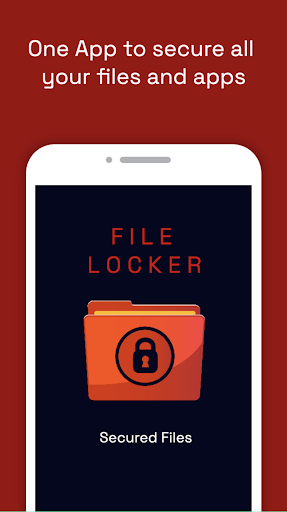
Password protect your personal files and apps with this secure application.
File Locker is your key to privacy. Password protect any of your applications or files with this simple yet effective free app.
File Locker Features:
- Lock images, videos, audio files, text files, and apps.
- Organize any content type with multilevel folder organization
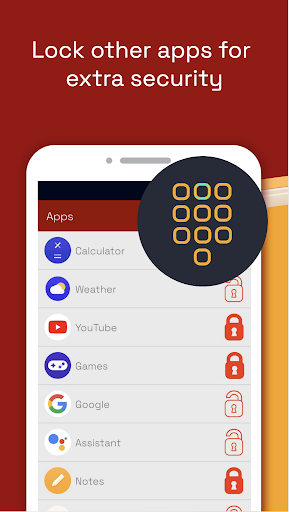
- Activate App Locker by tapping the menu and selecting App Lock. For newer devices you will have to grant File Locker the Usage Data Access permission. Tap the apps you want to lock, logout, and close the File Locker app. All the locked apps will now require your File Locker password before they are opened.
- Set an Intruder Alert to take a picture whenever a failed login occurs, can elect to store alerts in app, send via email, or both
- Light and Dark Mode available.
Usage Instructions Explained:
Create a folder structure:
- On vault screen, click the add button (bottom right), click "Create Folder"
- To create additional levels click into newly created folder, repeat prior step.
Store an existing device file:
- Long press a file, image, or video from another application. Click share, select File Locker. Please note that this COPIES the file into your vault, it does not MOVE the file. As such, you will have to delete the original unless you want multiple copies.
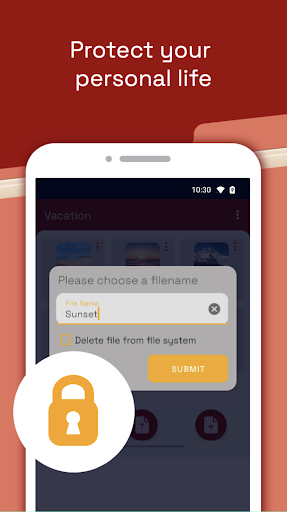
- Alternatively, on the vault screen click the middle button to browse your device's file system. There will be an option to delete the file from the device when uploading to the vault.
Create a new file:
- On the vault screen, click the add button then select the type of file you would like to create. Current options are text, audio, video, image. You can either name your file now, or rename it after the fact.
App Credentials:
- Enter email and password (password must be at least 8 characters). Confirm email to complete registration
Additional Security:
- Optional MFA feature, provide and confirm your mobile number to receive 2FA OTP's prior to signing into the app. Enable in Settings
- Intruder detection feature: when enabled will take picture of person using device when credentials are entered incorrectly. Image can be stored on device, emailed,