ScreenCast Receiver

ScreenCast Receiver Summary
ScreenCast Receiver is a mobile Android app in Communication by NeoYantra. Released in Feb 2020 (6 years ago). It has about 1.4K+ installs Based on AppGoblin estimates, it reaches roughly 44 monthly active users . Store metadata: updated Aug 23, 2024.
Recent activity: 1.00 installs this week (5.00 over 4 weeks) showing steady growth View trends →
Store info: Last updated on Google Play on Aug 23, 2024 .
0★
Ratings: 0
Screenshots


App Description
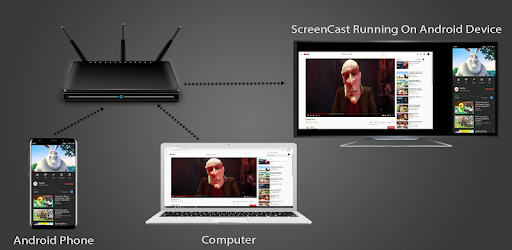
ScreenCast is Receiver for mirroring Android, Windows and Apple devices
ScreenCast is Receiver App on Android for mirroring Android, Windows and Apple devices. The sender device can be an Android device or a Microsoft Windows PC (using Chrome browser). The Sender device can also be a Google cast sender like Chromebook or MAC/Linux with Chrome browser, or an Apple iPhone, iPad or Mac. The Receiver App can be installed on Android OS based devices including but not limited to Android TV, Android Set Top Box, Android Phone or Tablet.
This app is highly useful for sharing the screen/audio content of sender devices with family, friends, colleagues, customers or business partners.
Instructions for using ScreenCast App:
--------------------------------------------------------------
1. Launch ScreenCast App on the Android Device. The App will start advertising Android Device as a Receiver. Default name of the Receiver is Android Device’s name suffixed with 'Neo-Cast'.
2. On the sender Device, enable casting and select the Receiver's name from the list. Enabling the casting will vary from one device to other. Please check the sender device's user manual for instructions to enable mirroring using Google cast. The sender and receiver devices should be in the same network.
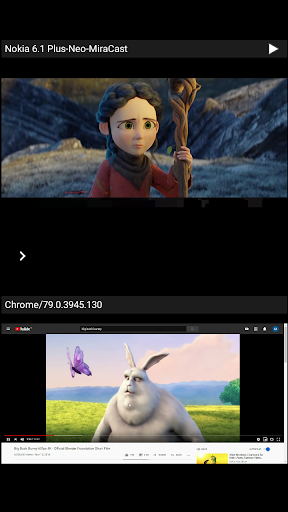
3. On the App, the list of sender devices connected to the App are shown in semi transparent control-screen which slides out on touching ">". For unhindered mirroring, slide control -screen to left by swiping it to left or by touching outside the control-screen.
4. One can disconnect sender device and mute/unmute the mirroring by touching mirroring window in the App for about two seconds, or by going to control screen and perform disconnect and mute/unmute.
Disclaimer:
Apple, Microsoft, Windows, MAC, Chrome, Chromebook, Android, Android TV, iPhone, iPad, Mac are trademarks/tradenames of their respective owners.