KODAK Photo Printer


KODAK Photo Printer Summary
KODAK Photo Printer is a mobile Android app in Photo And Video by PRINICS Co., Ltd. Released in Aug 2021 (4 years ago). It has about 1.3M+ installs and 29.4K ratings with a 4.70★ (excellent) average. Based on AppGoblin estimates, it reaches roughly 18.8K monthly active users . Store metadata: updated Apr 7, 2026.
Recent activity: 6.9K installs this week (21.9K over 4 weeks) showing steady growth , and 587 new ratings this week View trends →
Data tracking: SDKs and third-party integrations were last analyzed on Apr 2, 2026.
Store info: Last updated on Google Play on Apr 7, 2026 .
KODAK Photo Printer was last scanned for SDKs 2026-04-02. Below is the overview of third party companies detected in the app. The full list of raw SDKs, app permissions and unknown SDKs is available here.
 Kotlin
 Square
 Google
 Bumptech
 Firebase
 Facebook
4.7★
Ratings: 29.4K
Screenshots


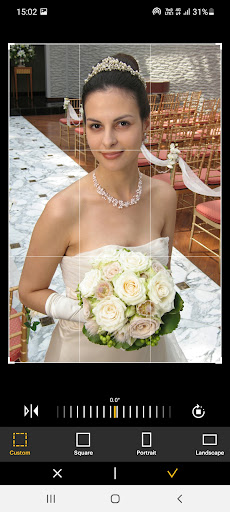
App Description
Edit and print your precious memories with KODAK Photo Printer app.
The new features including the AR and beauty functions will blow you away! Thanks.
Supported Models :
Kodak 2 inch Printer (P210, M200)
Kodak 2 in 1, 2 inch Camera (C210, MS200)
Kodak 3 inch Square Printer (P300, M300)
Kodak 3 inch Square 2 in 1 Camera (C300, MS300)
Kodak 4inch Square Camera (MS400)
Kodak 6 inch Dock Printer (PD460, D600)
[How to Use]
1. Connect the printer to a power source.
(For battery models, make sure the battery is sufficiently charged.
For adapter models, use the provided adapter.)
2. Turn on the printer.
3. Make sure there is enough cartridge and paper in the printer.
4. Open the app and tap the Bluetooth icon at the top.
In the list of paired or discovered devices, find your printer’s name and tap to connect.
5. If you cannot find the printer name in the app,
go to your phone’s Bluetooth settings and search for the MAC address.
The MAC address is located inside the printer’s door.
For Dock Printers, dock your smartphone at the pin on top,
or find the MAC address on the underside of the printer to connect via Bluetooth.
6. Select an image from your Gallery or take a photo with your smartphone.
7. After selecting an image, edit it as you like.
8. When editing is complete, press the print button located on top of the printer.
9. For the first print, a firmware update may be required.
Please follow any on-screen instructions on your smartphone.
10. Printing takes about one minute.
Please do not pull out the photo until it is completely ejected.