RayView

RayView Summary
RayView is a mobile Android app in Travel And Local by RAYMARINE LIMITED. Released in May 2012 (13 years ago). It has about 75.5K+ installs and 266 ratings with a 2.61★ (poor) average. Based on AppGoblin estimates, it reaches roughly 2.1K monthly active users . Store metadata: updated Aug 2, 2017.
Recent activity: 574 installs this week (582 over 4 weeks) showing exceptional growth View trends →
Store info: Last updated on Google Play on Aug 2, 2017 .
2.61★
Ratings: 266
Screenshots



App Description
View your Raymarine display over WiFi
About Raymarine RayView
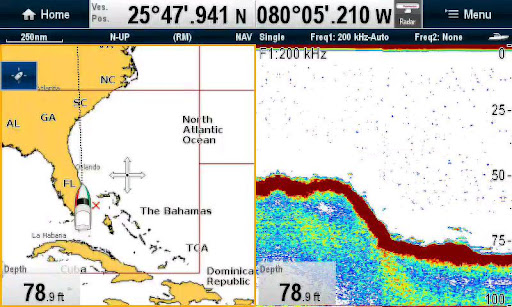
RayView allows you to view your Raymarine WiFi enabled Multi-Functional Display via your smartphone or tablet.
Android/Kindle Fire = Best performance achieved with 1GHz processor or better and running Android 2.2.2 or later.
Multi-Functional Display software requirement – v 3.15 or later.
Compatible displays (MFDs) – all Axiom as well as third generation c-Series, e-Series, g-S, ES and Wi-Fi enabled a-Series models
To use this app please upgrade your Raymarine c-Series or e-Series Multi-Functional Display to software version 3.15 or later. Software upgrades are available for free at www.raymarine.com/support.
If you enjoy RayView you may also be interested in the RayControl and RayRemote apps. RayControl for tablets provides full touch screen control of your Raymarine WiFi enabled MFD, plus a handy slide out virtual MFD keypad gives you even more control options. RayRemote for smart phones provides a full screen virtual MFD keypad, transforming your phone into a full function Raymarine MFD remote control.
Getting Started
Download the RayView app, and install it on your device. Then connect to your Multi-Functional Display via Wi-Fi (see operators manual for Wi-Fi setup details).
When the Wi-Fi connection is established, launch the app.
You should now see the same image on your device as on your Multi-Functional Display.