Notification Icon Complication

Notification Icon Complication Summary
Notification Icon Complication is a mobile Android app in Personalization by DYNA Logix. Released in Nov 2018 (7 years ago). It has about 5.1K+ installs and 65 ratings with a 4.12★ (good) average. Based on AppGoblin estimates, it reaches roughly 247 monthly active users . Store metadata: updated Sep 13, 2023.
Recent activity: 2.00 installs this week (5.00 over 4 weeks) showing steady growth View trends →
Store info: Last updated on Google Play on Sep 13, 2023 .
4.12★
Ratings: 65
Screenshots

App Description
Plug-in for Bubble Cloud Widgets and any complication capable Wear OS watch face
This is a plugin/theme for Bubble Cloud Watch Face, complication provider for all complication-ready Wear OS watch faces and plugin for home screen widgets (see setup notes below)
NEW:
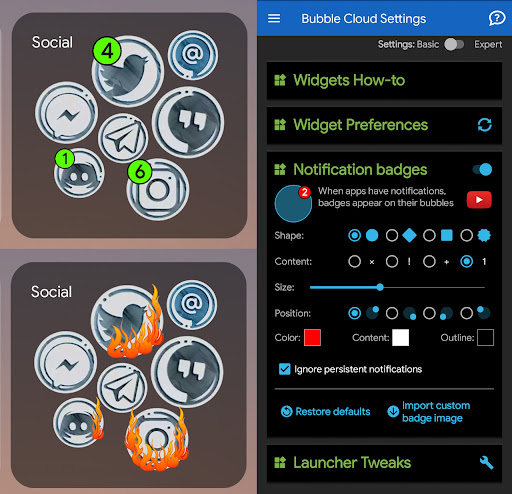
Plugin to show notification count badges in home screen widgets on phone/tablet
FEATURES
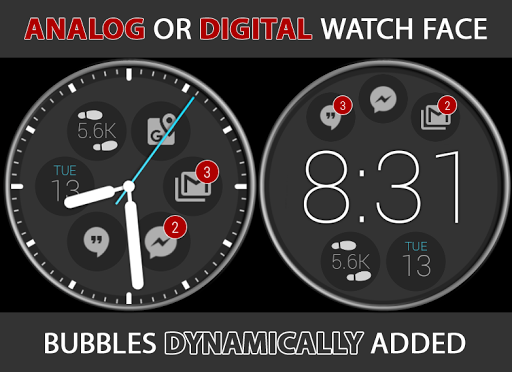
► Dynamically adds notification icons to your watch face (up to 9 icons!)
► Count badges for repeating icons
► Outline icons in ambient mode
► Tap icons to view, manage, filter notifications by app or content
► Shows full text (does not truncate like latest Wear OS)
► Reply via voice / keyboard / emoji
► Watch face complications} for use in any watch face app
► Add/remove filters via Locale / MacroDroid / Tasker plugin
I MAINTAIN THIS APP
Please report any issues. Thank you for any feedback!
SETUP: Complications
1. Install phone app
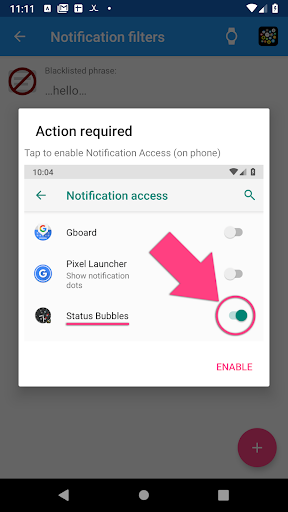
2. Open app to enable Notification Access
3. Add complication "Icon 1"..4 to your watch face
See https://bubble.dynalogix.eu/notification-icons-watch-face-complications/
SETUP: Bubble Clouds
1. Find "Notification Bubbles" section in Bubble Cloud app on phone
2. Install this theme/plugin to both phone and watch
3. Open "Status Bubbles" on the watch
4. You will get a prompt to enable Notification Access on phone
5. The notification bubbles should appear on your watch face
Setup is shown in video from 3:47 → http://youtu.be/S-A976Dcjpc?t=227
To get a watchface with the exact look of the video:
1. Install the plugin on the watch first
2. Install Bubble Cloud next
3. If Bubble Cloud finds a single theme installed it will set it up from the get go
It takes 82 seconds as shown in https://youtu.be/1RavyDzmGRE
(If you don't follow this install order, you can still get the same look, but you will have to use the menu command "1-click themes" to select the Status Bubbles theme, then long press some bubbles to move them away from the watch face)
USAGE ON WATCH
► Tap any notification bubble to expand
→ "Phone+Eye" button to open on phone
→ "Block" button to blacklist app (long press)
→ "Trash" button to dismiss notification on phone+watch
→ Tap an expanded notification to go back to the list
► Tap the overflow (+X) bubble to see full list of notifications
→ "Gear icon" at top of list to change settings
→ Swipe left to dismiss a notification (BLUE)
→ Swipe left to blacklist a persistent notification (RED)
→ "Clear filter" at bottom of list to see full list
→ "Dismiss all" at bottom (press and hold for 1 sec)
► Long press any notification bubble to change settings
→ Max number of status bubbles (they are added dynamically)
→ Option to show app icon when no active notifications
→ Open app on phone for more settings
SETTINGS ON PHONE
► See "Notification bubbles" section or tap on "Status bubbles" in the Wear Cloud Editor
→ Customize all colors
→ Options to override the theme colors
→ Some colors have transparency control!
→ Some colors come from theme by default, use override
→ Button to blacklist/whitelist screen
► "Funnel" icon in Wear Cloud Editor → black/whitelist directly
→ You can only blacklist apps on the watch ("Block" button)
→ Use "+" FAB to blacklist/whitelist phrases
→ Tap item to edit
→ Swipe left to remove apps/phrases from the list
App is very battery friendly, not running when not used
BLACKLIST/WHITELIST
► Whitelisting overrides black lists.
So if you have blacklisted an app, but its notification includes a whitelisted phrase it will still show up.
► Phrase filters are case insensitive
► Use leading and trailing spaces cleverly!
► Wildcards might come if requested
BACKUP/RESTORE
► Status bubble color settings are saved with Bubble Cloud backup
Email me if something is still not clear.
See webpage for more information: https://bubble.dynalogix.eu