Screen Timeout Quick Settings


Screen Timeout Quick Settings Summary
Screen Timeout Quick Settings is a ad-supported Android app in Tools by Soboku Apps. Released in Feb 2023 (3 years ago). It has about 10.3K+ installs and 77 ratings with a 3.70★ (average) average. Based on AppGoblin estimates, it reaches roughly 1.3K monthly active users and generates around $<10K monthly revenue (0% IAP / 100% ads). Store metadata: updated Nov 16, 2024.
Recent activity: 756 installs this week (1.2K over 4 weeks) showing exceptional growth , and 1.00 new ratings this week View trends →
Store info: Last updated on Google Play on Nov 16, 2024 .
3.7★
Ratings: 77
Screenshots

App Description
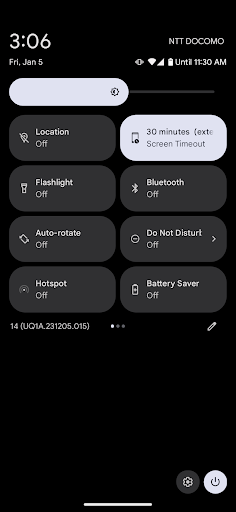
A quick setting tile to toggle the screen off timeout with a single tap.
This application adds a quick setting to toggle the screen off timeout (the time until your phone goes to sleep) with a single tap.
By adding this quick setting, you can extend the screen off timeout with a single tap from the notification area when you cannot touch your phone but do not want the screen to go off immediately, such as when cooking while looking at a recipe, studying while looking at an explanation, playing a game while looking at a guide site, and so on.
* FEATURES
✓ Can toggle the screen off timeout with a single tap.
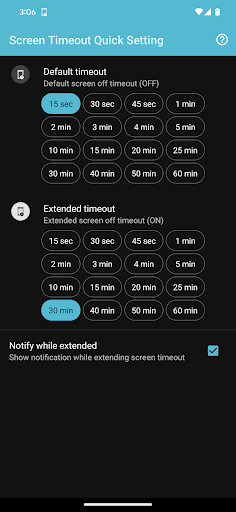
✓ Can set different times for OFF (default) and ON (extended).
✓ Can set up to 60 minutes (*may not work on some devices).
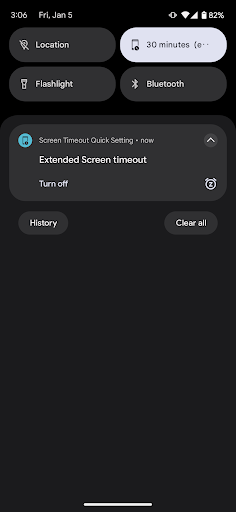
✓ Can show a notification to remind to turn the quick setting off.
[How to add to Quick Settings]
1. Swipe down twice from the top of the screen to pull out the notification area to the whole screen.
2. Tap the pen icon at the bottom of the Quick Settings screen to display the Edit Quick Settings screen.
(Depending on the OS version, the pen icon may appear at the top.)
3. Long-press and hold the "Screen Off Time" quick setting tile, drag it to the top, and release it where you want to place it.
[Special access permission]
To change the "Screen Off Time" setting, confirm permission to "Change System Settings" at first startup.